
CloudWorks Integration
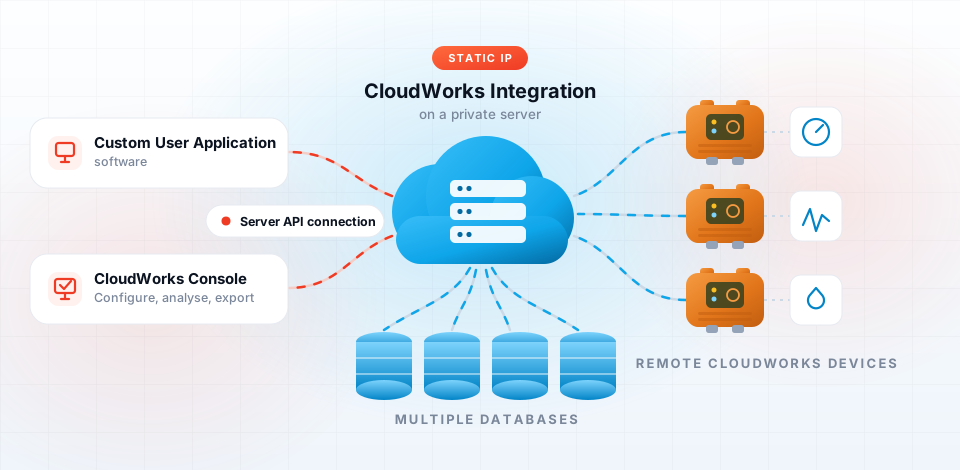
CloudWorks Integration runs on a static IP Windows server and is the heart of a CloudWorks system: every logger reports to it, it stores what they send, and CloudWorks Console, CloudWorks Online and your own applications all read from it. Because the server is the fixed point, your loggers can live on networks that only hand out dynamic IPs, such as most mobile operators.
The CloudWorks suite. CloudWorks Integration (the server) and CloudWorks Console (the Windows application) are what your administrators use to run the system; both are installed with the CloudWorks Installer. CloudWorks Online is the browser version — your clients use it to see their data, and administrators get almost everything the Console does, bar Bluetooth configuration. CloudWorks Configure is the Android app for Bluetooth set-up at the logger. The older CloudWorks Client and CloudWorks Server are obsolete. Which one do I need?
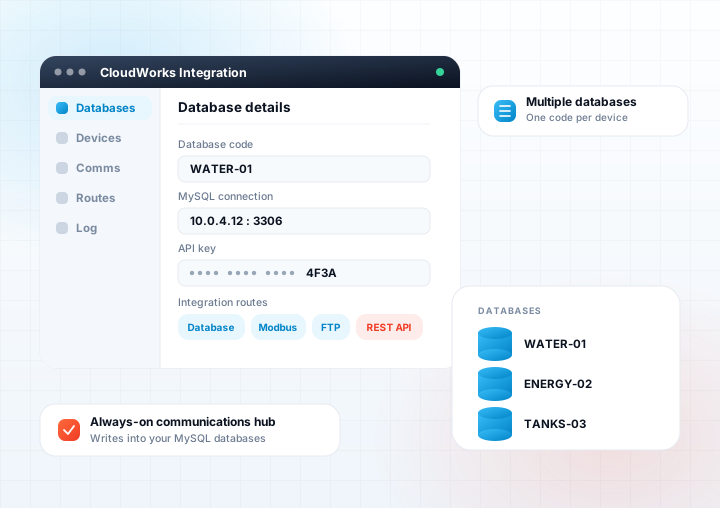
Always-on communications hub
This software automatically manages the communications, keeps the timing on the entire network synchronised and manages a heartbeat system for online devices to ensure communications are always healthy. Fully private networks can be established using VPNs and private APNs.
Its secondary function is to extract the data from the remote devices and insert it into their respective databases, of which it can support multiples thereof. Each database has a Database Code associated with it, which is also programmed onto each remote device. This allows CloudWorks Integration to determine into which database the data is to be populated.
How the pieces fit together
Remote devices talk to CloudWorks Integration, which writes into MySQL. CloudWorks Console, CloudWorks Online, your SCADA system or your own website read from there over any of the four integration routes below.
Four ways to get your data out
CloudWorks does not lock your data away. Choose whichever route fits the system you are feeding — you can use more than one at the same time.
Direct database access
Connect straight to the MySQL database that CloudWorks Integration populates. The full database structure is published, so you can query it from your own reporting, billing or analysis tools.
Modbus TCP/IP
Open a Modbus TCP/IP communications channel to the server for real time values. The natural route into a SCADA, PLC or building management system.
FTP upload
Have collected data delivered to your own FTP server, so your systems pick it up as files on a schedule rather than querying a database.
REST API connection
Request data over HTTP from your own application, website, dashboard — or an AI agent — using the REST API embedded in CloudWorks Integration. See the API User Manual and the AI reference file.
The database structure and the server protocol are documented in full — see the CloudWorks Database Structure Manual and Server Protocol Manual. Talk to us about which route suits your platform.
What CloudWorks Integration handles
-
All in one server management system for the CloudWorks platform.
-
Controls the communications stream between the end user and remote devices.
-
Manages the data collection of remote devices and insertion into the relevant databases.
-
Automatically synchronises the time on all remote devices to UTC time.
-
Manages the dynamic IP communications register for remote devices as well as the heartbeat system.
-
Wide range of communications analysis tools.
-
Supports multiple databases to allow for many different clients or independent systems.
-
Automatic software updates from our servers each time the software is run.
-
Customisable screen table layouts.
What the server needs
CloudWorks Integration runs on a server with a static IP address that is exposed to the internet, so the remote loggers can reach it.
The machine
- Windows Server 2016 or higher
- Processor - at least 3GHz
- RAM - at least 16Gb
- A static IP address, exposed to the internet
- Installed version of MySQL Database Manager
- An outgoing SMTP server it can connect to, for sending email
- Microsoft .NET Core - the installer adds the version needed if it is not already available
Ports to open
- UDP 13000 - inbound connections from the remote loggers
- TCP 18500 - REST API over HTTP
- TCP 18501 - REST API over HTTPS
- TCP 3306 - optional, for a direct MySQL database connection
You do not have to configure the Windows firewall yourself — CloudWorks Integration adds the rules for these ports automatically when it is installed.
Beyond the server itself. If CloudWorks Integration is running on a cloud server, these ports also need endpoints assigned to them in your cloud provider's console. If the server sits behind a router, the router needs port forwarding set up for the same ports.
Migrating from CloudWorks Server? If you are moving an existing system across, restart your CloudWorks Server software first and let it update itself to the latest version. That migrates your database settings, ready for CloudWorks Integration to use. See the installation page.
Outgoing email needs an SMTP server — plan for this. CloudWorks Integration sends email for password mailing, alarms and alerts, so it needs a working connection to an outgoing SMTP server. Many SMTP providers block relaying from hosts they do not recognise: where that is the case, the CloudWorks server's IP address must be whitelisted on the SMTP server before any mail will be delivered. It is worth settling this before you go live.
Run your own CloudWorks server
CloudWorks Integration is supplied free of charge with the hardware. Download the installer and run it on your static IP Windows server.