CloudWorks Configure
CloudWorks Configure is the Android app for setting up CloudWorks dataloggers in the field. It connects to a logger over Bluetooth, reads its configuration, lets you change it section by section, and carries the engineering tools you need on site — sensor tests, factory defaults, Bluetooth security, a communications view and firmware upgrades. No laptop, and no mobile signal needed.
Not on the Play Store — it installs from this page and updates itself from here. Best done from Chrome on the phone itself.
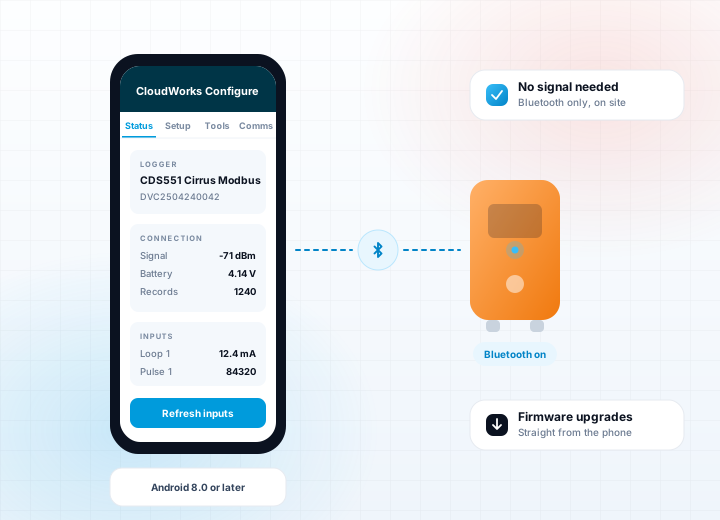
The Console's Bluetooth screens, in your pocket
Until now, setting a logger up at the device meant a Windows laptop running CloudWorks Console. CloudWorks Configure covers everything in the Console's engineering screens except label printing and loop calibration, which stay Console functions — and it does it from a phone.
The app identifies the logger as it connects and shows only the settings and tools that apply to that model. It supports the Cirrus, Nimbus and Stratus ranges (CDS543 to CDS555). The older Cumulus loggers are recognised but not supported; the app tells you to use the Console for those.
It does not set the logger clock. Loggers run on UTC and the CloudWorks server sets the time.
Install it from this page, on your phone
The app is a normal Android install file (an APK) that you download from this website rather than from the Play Store. The easiest way is to do the whole thing on the phone in Chrome: the file lands in the phone's Downloads, and Android installs it from there. Six steps, a few minutes.
Open this page in Chrome
Type cloudworks.systems/configure_software.html into Chrome on the phone, or send yourself the link, then follow the steps below. Reading this on a PC? Point the phone's camera at the code — it downloads the app straight to the phone.

Tap Download the app
In Chrome on the phone, tap the button above. Chrome shows its standard warning for any app that does not come from the Play Store — "This type of file can harm your device" — tap Download anyway (older versions say OK). The file is CloudWorksConfigure-0.7.1.apk.
Open the downloaded file
Tap Open in the download notification, or open Chrome's menu (⋮) → Downloads and tap the file there.
Allow installs from Chrome
The first time, Android says your phone is not allowed to install unknown apps from this source. Tap Settings, switch on Allow from this source, go back, then tap Install. Android asks this once per browser, not for every update.
Open CloudWorks Configure
The splash screen shows for three seconds and the Scan screen opens. Allow the app to find nearby devices when it asks — that is the Bluetooth permission. Location permission is only needed if you want the Use phone location button to fill in a logger's position.
Switch the logger's Bluetooth on
Press the button on the face of the logger for one second and release it. The blue LED starts flashing and Bluetooth is on for 90 seconds. If the time runs out, press the button again to switch it off, then once more to switch it on.
Tap the logger on the Scan screen
Loggers appear as DVC followed by their device code. The first time, the phone shows a Bluetooth pairing request — tap Pair (enter 1234 if it asks for a PIN). The Status tab opens and the app reads the whole setup from the logger.
Updating. Each time it starts, the app checks this website. When a newer version exists a blue card appears at the top of the Scan screen with the version number and what changed. Update opens the download in the browser; open the file and allow the install exactly as above. Your paired loggers are kept.
Which version have I got? The installed version and build number are shown at the bottom of the Scan screen. The current release is v0.7.1.
What CloudWorks Configure gives you
-
Connects over Bluetooth and reads the whole configuration from the logger — then shows only the settings and tools that apply to that model.
-
Setup tab — every setting in cards, one per section, with a hint under each field. Save one section at a time; a value the logger refuses shows the reason under it.
-
Status tab — signal, clock, record count, power and the live input readings, with a refresh.
-
Sensor tests — read the connected Modbus meter or sensor through the logger and decode the reply, so the wiring and the sensor are proven before you leave site.
-
Factory default — restore the standard settings for the model. The device code and serial number are kept.
-
Bluetooth security — turn the logger's password on or off. The password is never stored on the phone.
-
Firmware upgrade over Bluetooth — the app fetches the current firmware for the model from our servers and flashes it on site.
-
Application type advice — after you change the application type, the app checks the matching generator, loop and datalog settings and offers to apply them.
-
Wakeup logger and clear datalog, plus the hardware status readouts.
-
Comms tab — watch the commands and replies, send a direct command, share the log.
-
Works with no mobile signal. Internet is needed only to install or update the app, and to fetch a firmware file the first time.
-
Updates itself — each time it starts it checks this website and offers a newer version.
Configure, Console and Online
Bluetooth configuration at the device is the one thing CloudWorks Online cannot do. The Console does it from a Windows laptop; CloudWorks Configure does it from a phone.
CloudWorks Console
The complete Windows application. Everything Configure does, plus label printing, loop calibration, remote configuration, users, firmware and all the data.
About the Console
CloudWorks Online
The browser application. Remote configuration, users, tank tables and all the data — from anywhere, but no Bluetooth link to the device.
About CloudWorks Online
What you need
- An Android phone running Android 8.0 or later, with Classic Bluetooth
- Permission for the app to find nearby devices - it asks on first use
- Bluetooth switched on
- Internet access only to install or update the app, and for the first download of a logger firmware file
- Location permission only if you want the Use phone location button to fill in a logger's position
- Developed and tested on Samsung phones
Common questions
Is CloudWorks Configure on the Play Store?
No. It is installed from this page and updates itself from here. Each time it starts it checks the website for a newer version and offers it.
Why should I install it from the phone's browser?
Because the file then lands in the phone's own Downloads, ready to open and install. Downloading on a PC means copying the file across first. Open this page in Chrome on the phone, tap Download the app, open the file and allow the install.
Which loggers does it support?
The Cirrus, Nimbus and Stratus ranges - CDS543 to CDS555. The older Cumulus loggers (CDS538 and CDS541) are recognised but not supported; use CloudWorks Console for those.
Do I need a mobile signal on site?
No. Configuring a logger is done entirely over Bluetooth. Internet access is needed only to install or update the app, and to fetch a logger firmware file the first time.
What if the logger has Bluetooth security on?
The app asks for the password as it connects and keeps it in memory only for that connection. It is not stored on the phone, so you enter it each time.
The rest of the suite
CloudWorks Configure sets the logger up. CloudWorks Integration collects what it sends, and CloudWorks Console and CloudWorks Online are where you work with it.